
Virtual classes and the classroom in one app
Lessons are scheduled on Google Meet or Microsoft Teams, and students join in one tap from their timetable.
 Google Meet
 Microsoft Teams
 app.jarasna.com
The lesson link sits in a group chat, homework is on paper, and marks are in a notebook — and neither the student nor the parent knows where to find what.
Watch virtual classes and the classroom in 37 seconds
A short video from app screens: scheduling a lesson, the student joining, then the lesson, homework and stars. Narration is in Arabic.
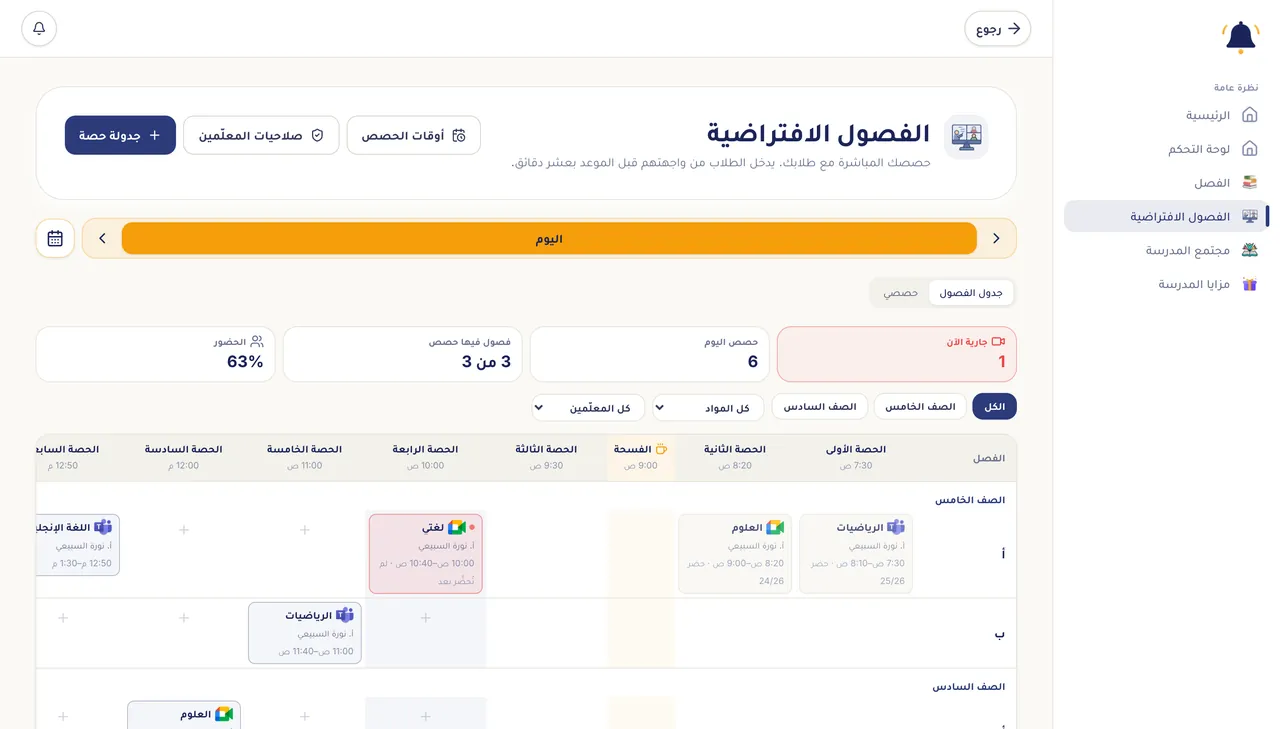
Lessons on Google Meet and Microsoft Teams — in one timetable
The school schedules; students find their lesson at its time.
app.jarasna.com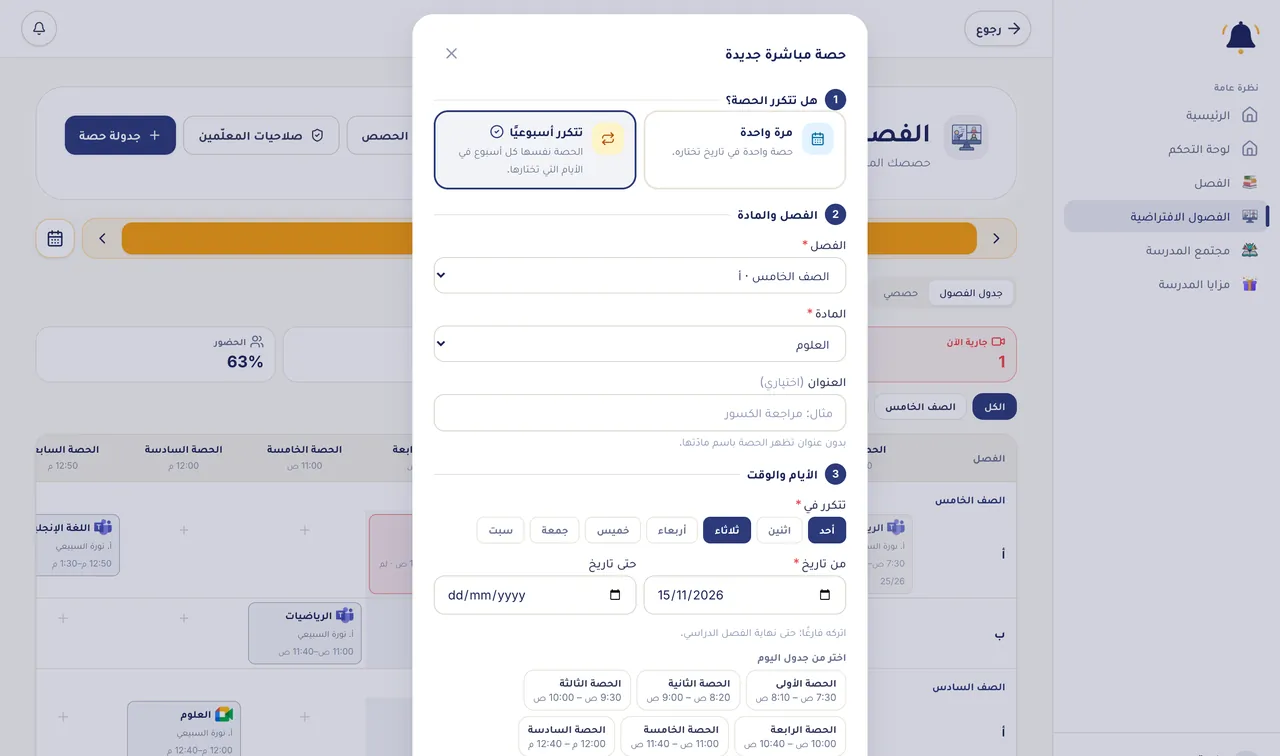
Scheduling: once or every week
The school picks the grade, subject, day and period, and the lesson appears in the class timetable — a single lesson or a schedule that repeats every week.
- Weekly schedule: lessons repeat on their days with no re-entry.
- Built on your periods: the timetable follows your own school-day periods.
- A view for management: today’s lessons for every class on one screen.
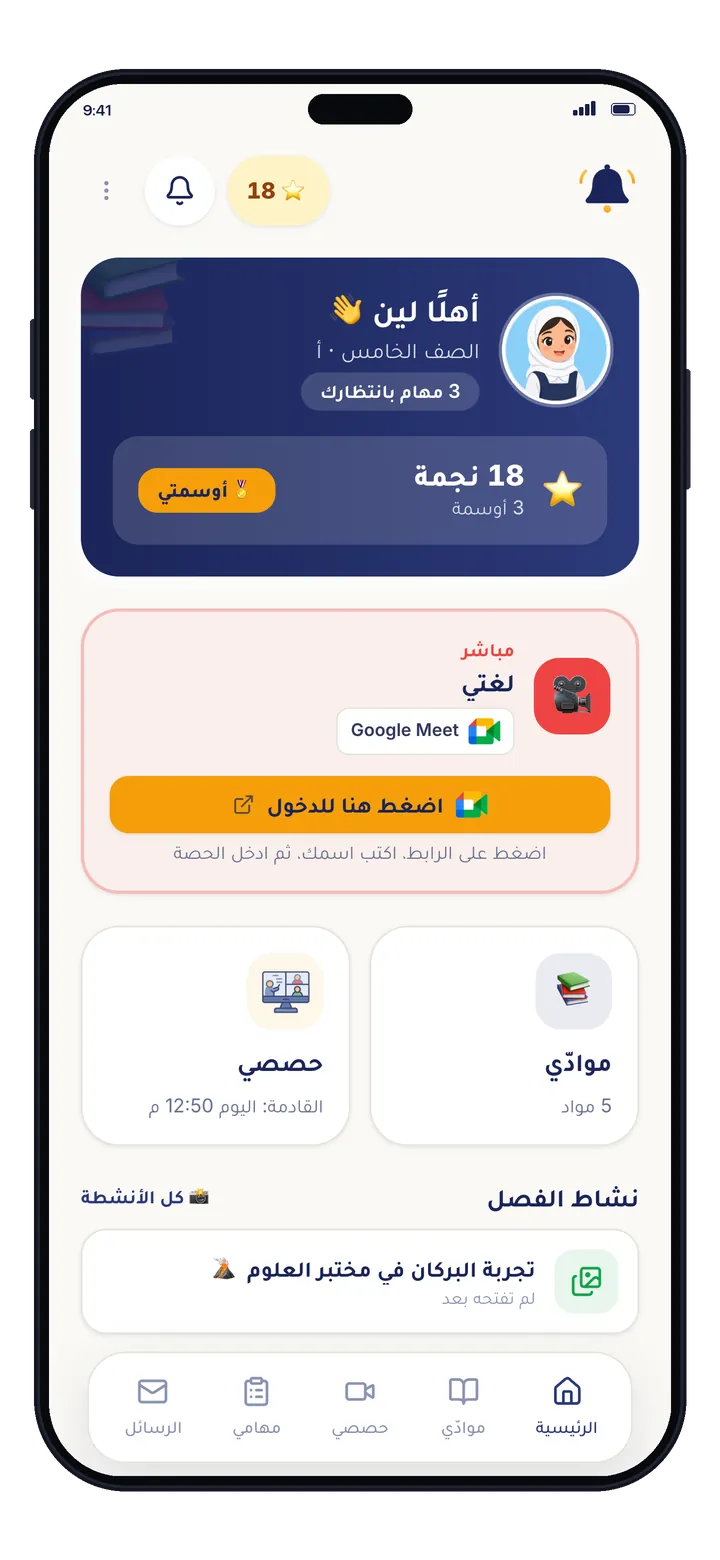
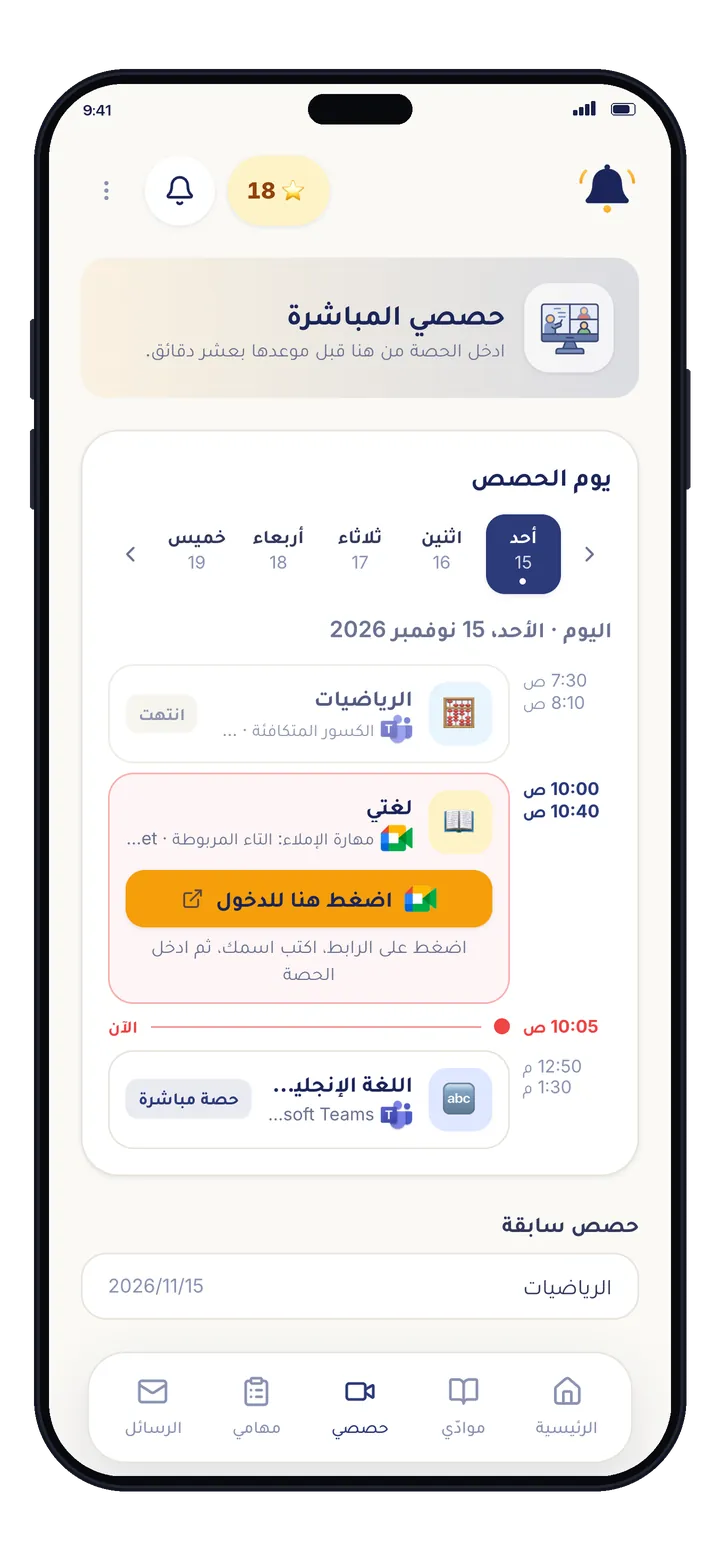
Students join in one tap
The current lesson shows at the top of the student’s interface, with the Google Meet or Microsoft Teams logo and a join button.
Google MeetMicrosoft Teams- My lessons: today’s and the week’s timetable in front of the student.
- No hunting through group chats: the lesson is in its place, at its time.
- Parents included: they see their child’s timetable and can join them from their own app.
And the whole classroom with it: lessons, homework and stars
Whatever the teacher publishes, students find sorted by subject — and parents follow it from their app.
app.jarasna.com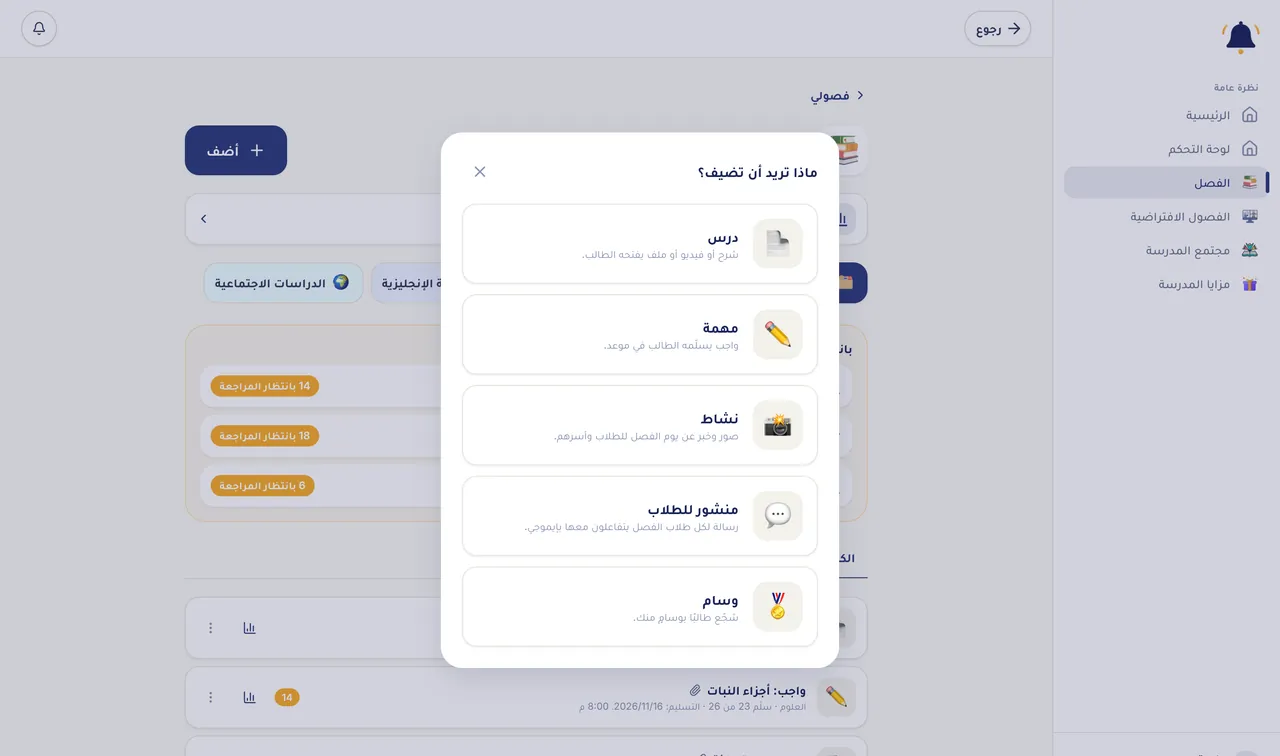
Teachers publish a lesson or homework in seconds
From the “Add” button inside the class: a lesson, a task, an activity, a post for students, or a badge.
- Lesson: an explanation, video or file students open any time.
- Task: homework students hand in before a deadline the teacher sets.
- Activity: photos and news from the class day, seen by students and their families.
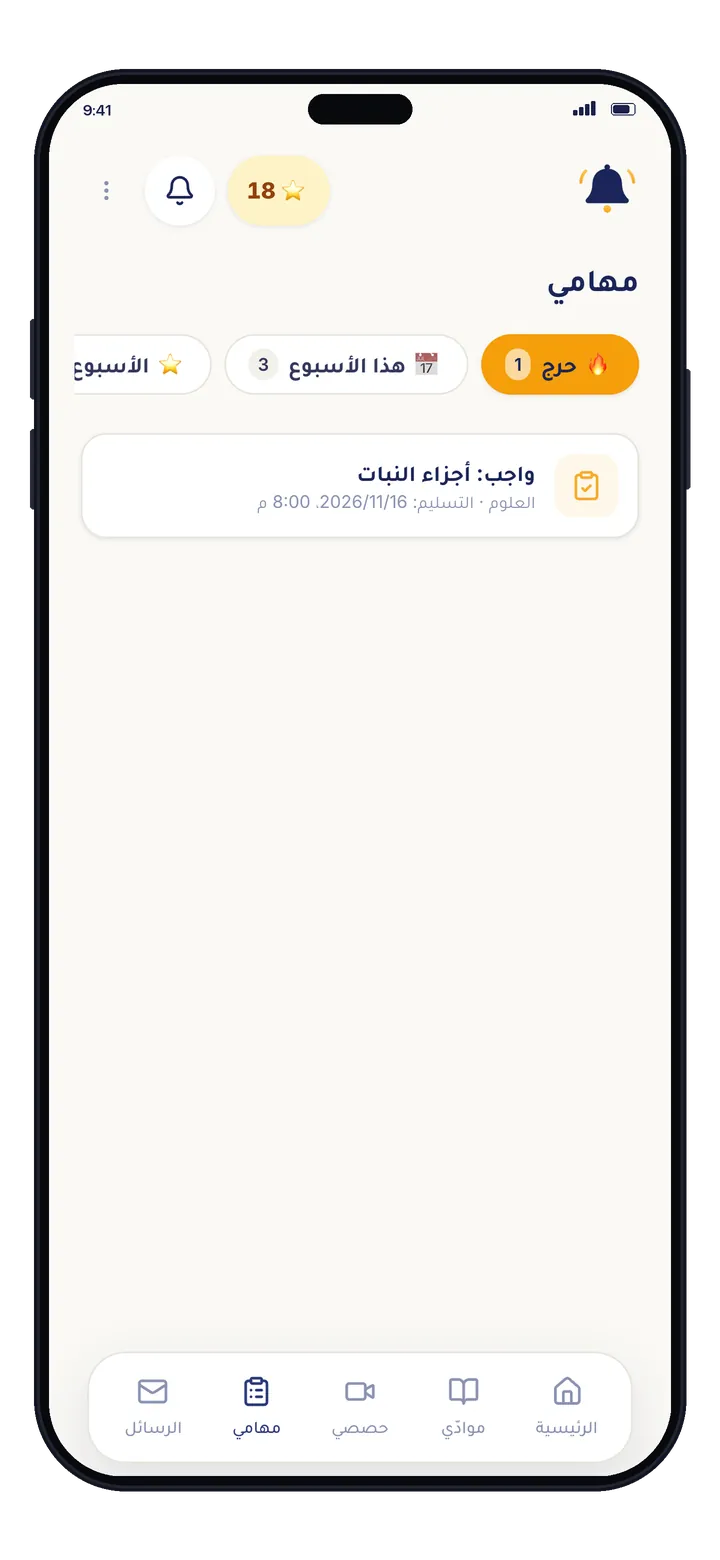
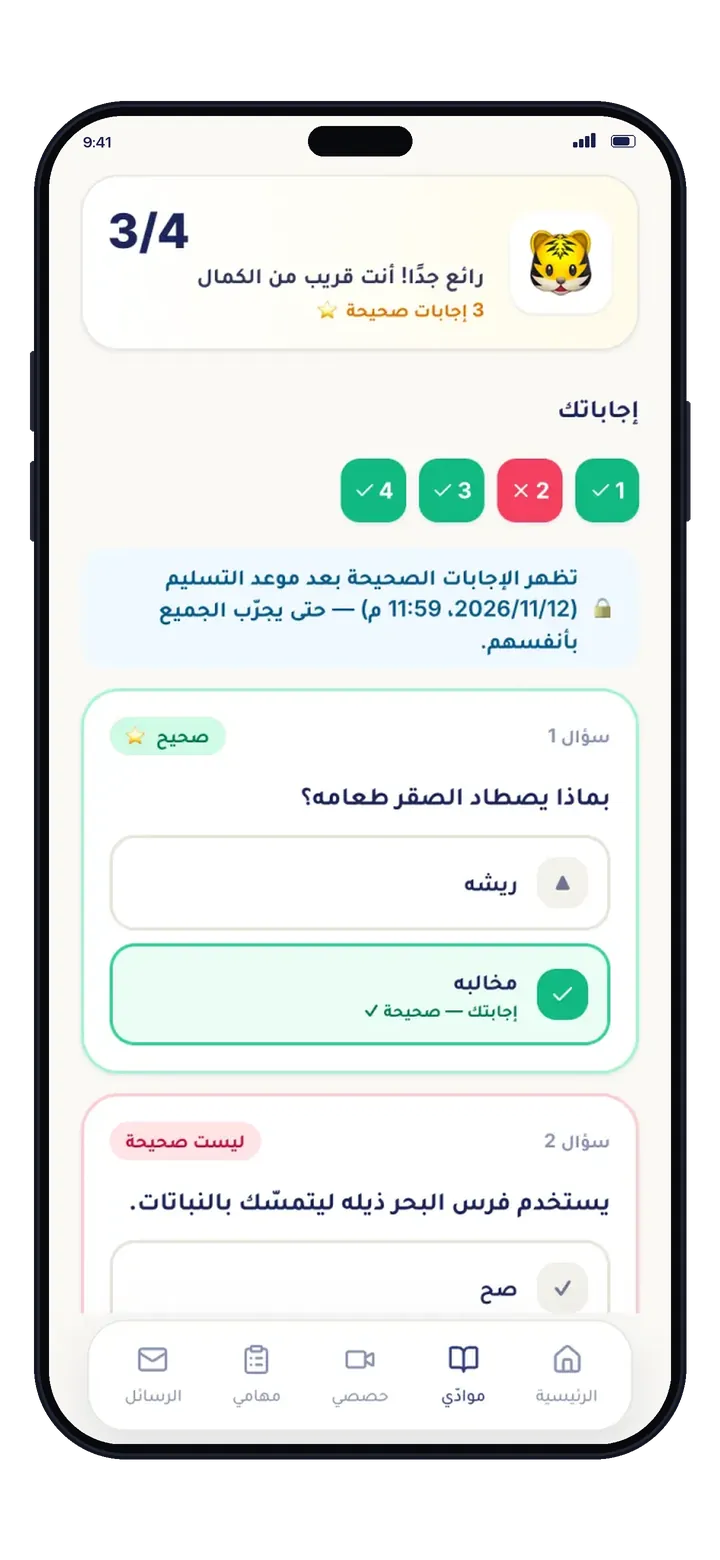
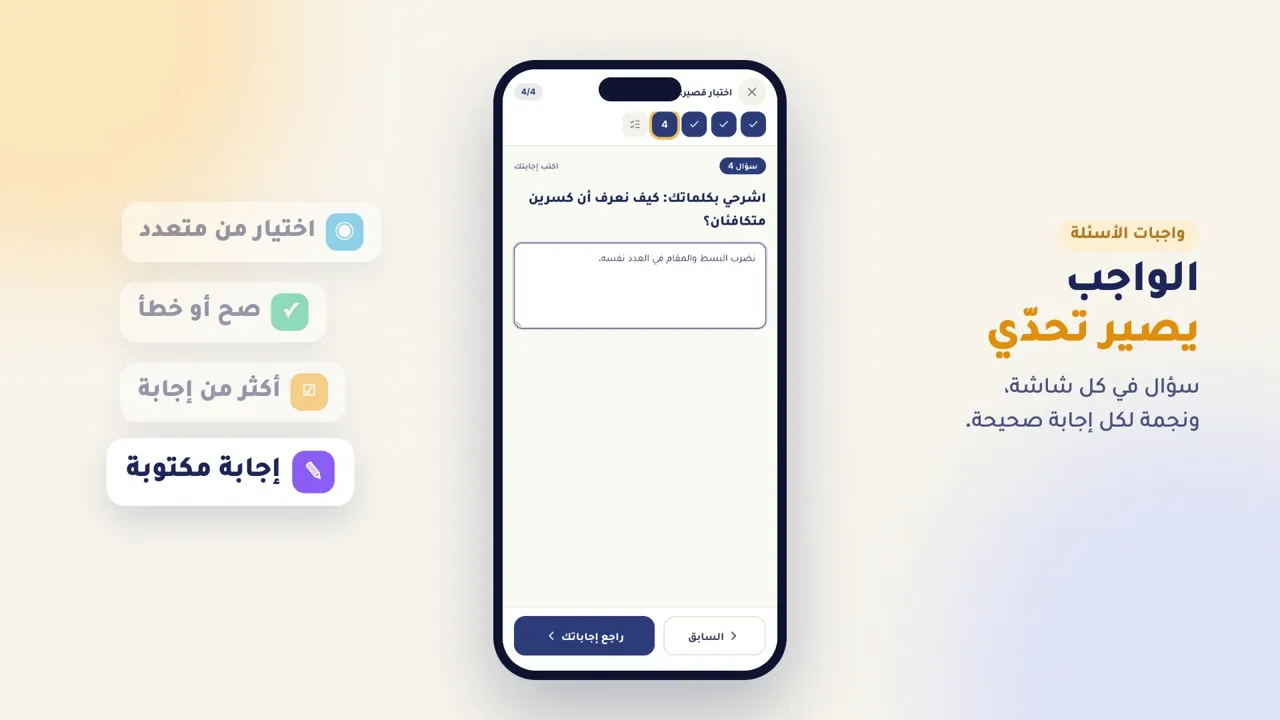
Question assignments are marked at once
A task solved on a phone and marked immediately, so students see their result and learn from their mistakes.
- Question types: multiple choice, multiple answers, true/false and written answers.
- Instant result: students see how many answers they got right after handing in.
- Written answers: marked by the teacher.
Stars and badges that motivate every student
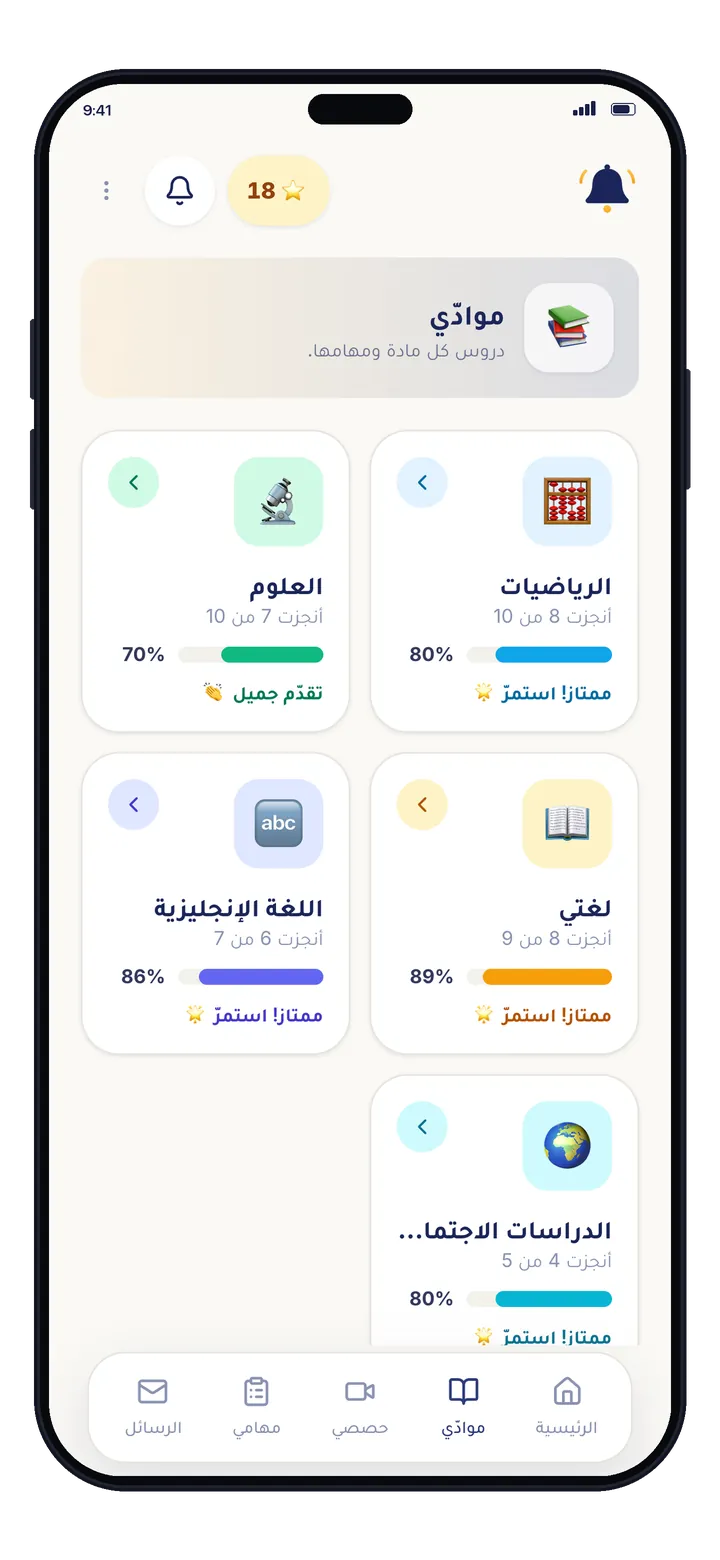
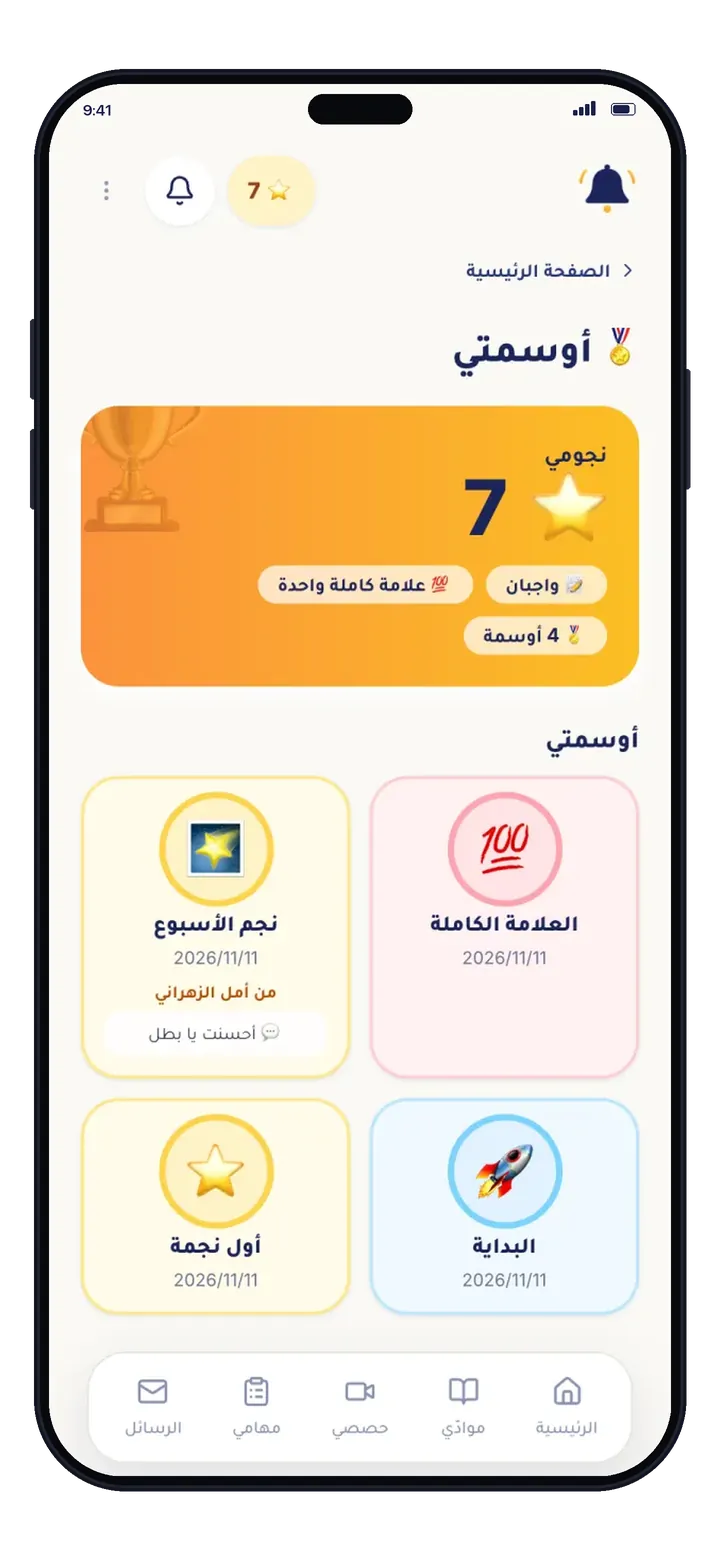
Every correct answer is a star, and badges come in two kinds: automatic ones awarded by the system, and ones teachers award with a word of encouragement.
- Badges for effort too: handing in on time and opening lessons.
- No comparison: each student sees only their own stars and badges.
- Shared with home: a teacher’s badge reaches the parent as a notification.
Every subject, with its progress
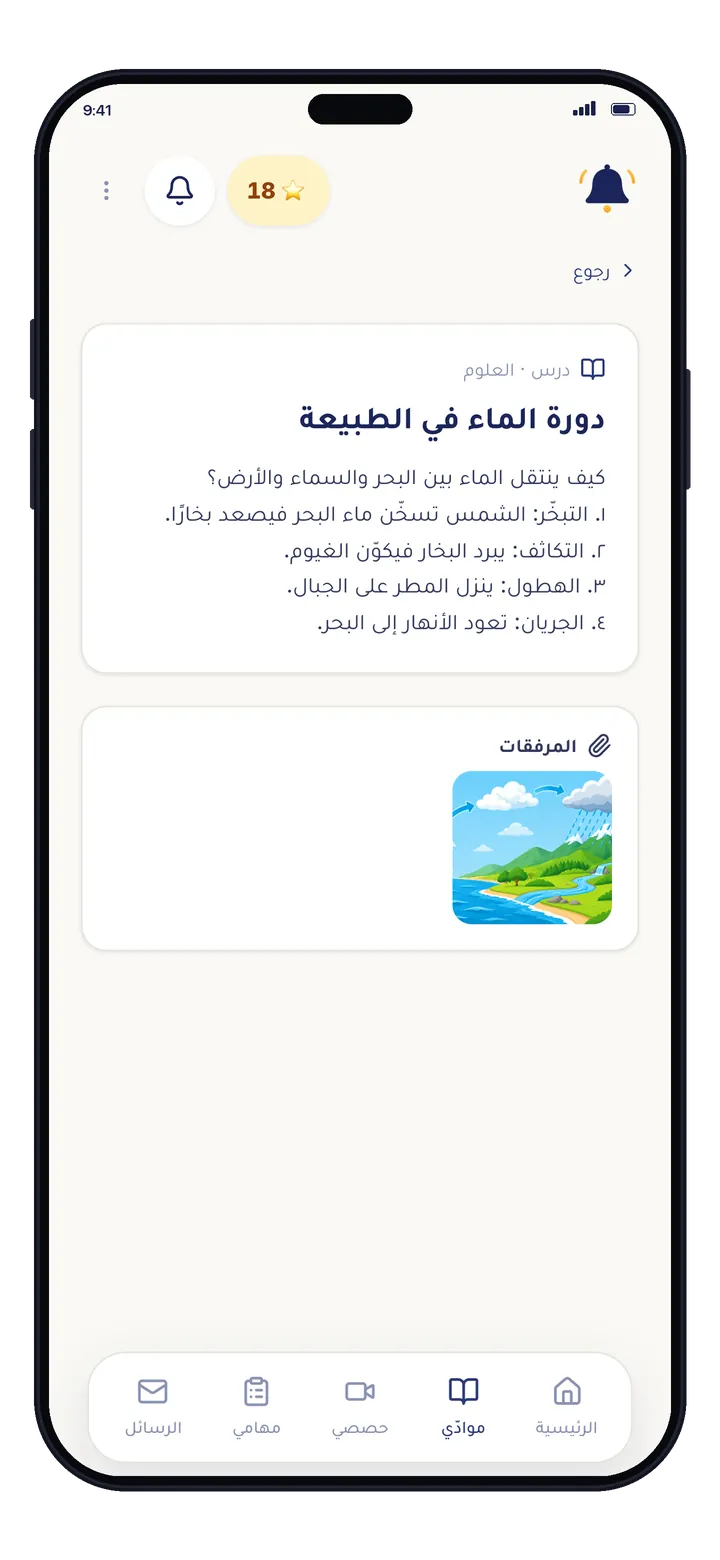
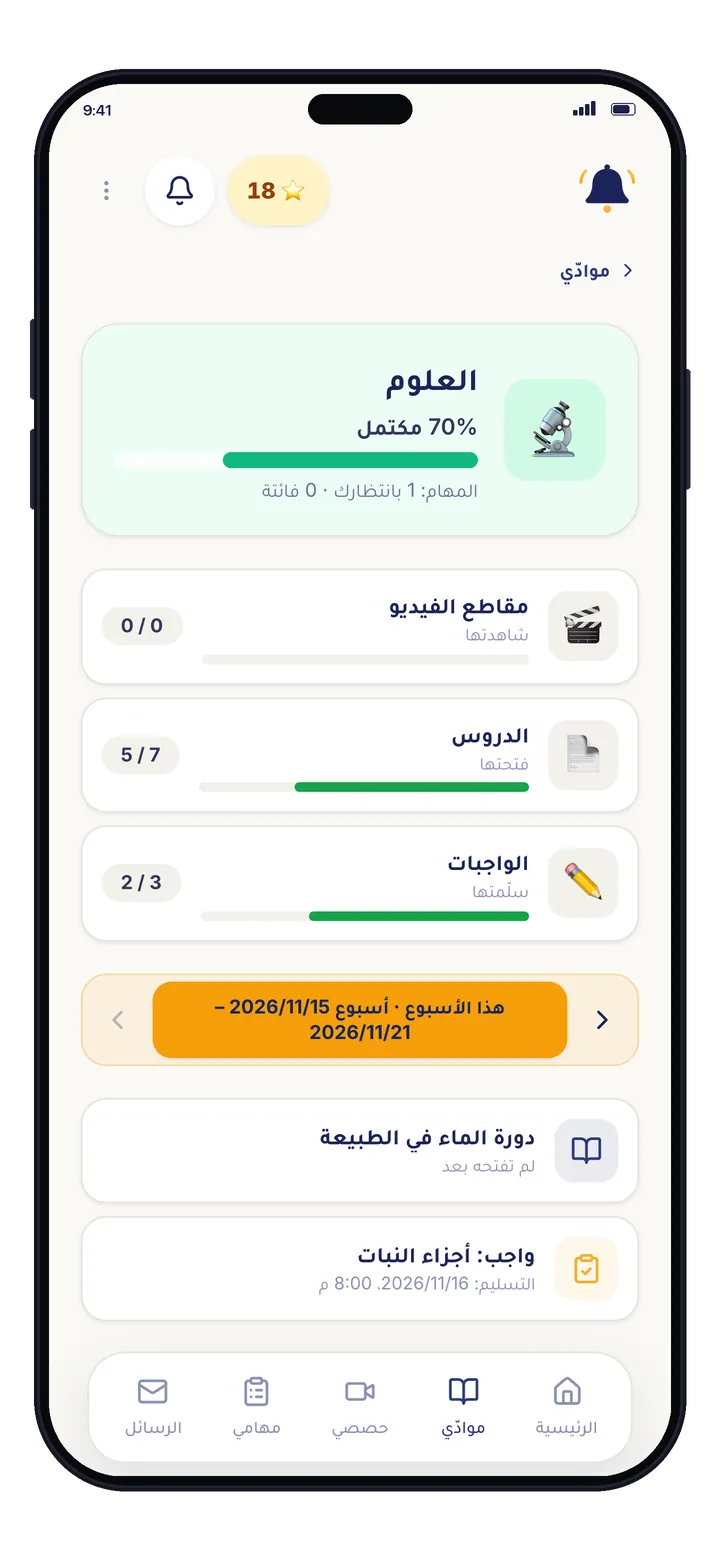
In “My subjects” students see their progress in lessons and homework for each subject, and teachers and management see student performance.
- Clear progress: completed lessons and homework for each subject.
- Student performance: who opened the lesson and who watched the video.
- A student interface: simple, and built for the phone.
What students and parents see — and what the school sees
Students & parents
- Today’s lessons and the join button in one place
- Lessons and homework sorted by subject
- Homework results right after handing in
- Stars and badges that keep them going
School & teachers
- The virtual lesson timetable for every class
- Publishing lessons and homework from a browser or phone
- Question assignments marked by the system, saving teacher time
- Student performance in front of teachers and management
Questions that matter for your decision
Do lessons run on Google Meet and Microsoft Teams?
Can lessons repeat every week?
Is homework marked automatically?
Can parents follow the classroom?
See virtual classes and the classroom on your school’s data
A live demo that shows scheduling, publishing lessons and the student interface as your team will use them.